Admin onboarding guide

Set up TitanSim for your team.

Keep this guide open while you accept your signup invitation and prepare the company account.

What TitanSim is

TitanSim is a prepaid wallet for business mobile data.

Your team uses it to order eSIMs in 190+ countries.

Admins manage funds, people, policies, eSIMs, usage, and alerts from one dashboard.

Every company name, person, balance, and usage figure in these images is fictional example data.

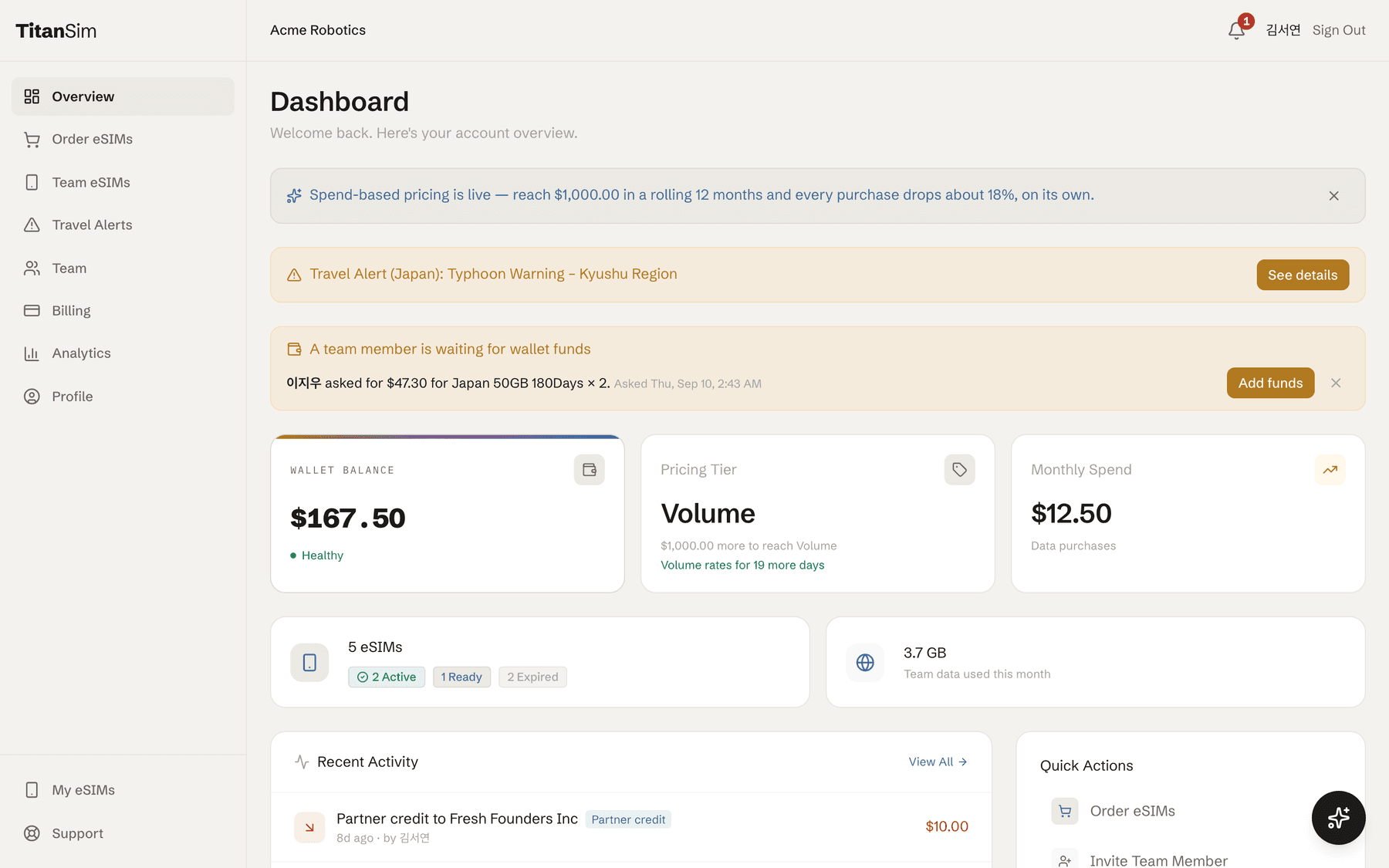
Example admin overview with the navigation sidebar, travel and funding alerts, wallet and spend summaries, eSIM counts, recent activity, and quick actions.
Admin overview: the starting point for wallet health, team activity, travel alerts, and common actions.
01

Fund the wallet

In the admin sidebar, open Billing and stay on the Wallet tab.

Open Billing

What a top-up does

Choose Top Up Wallet, enter an amount, and complete the card form. The cleared payment becomes prepaid company credit that is available for eSIM orders.

What the credit covers

Wallet credits do not expire. They buy eSIM data only, so they are not a seat fee, subscription payment, or general cash balance.

A sensible first top-up

Fund the first planned trip instead of guessing at a large annual budget. You can add more later, and Auto-Reload is available after you understand the team's normal pace.
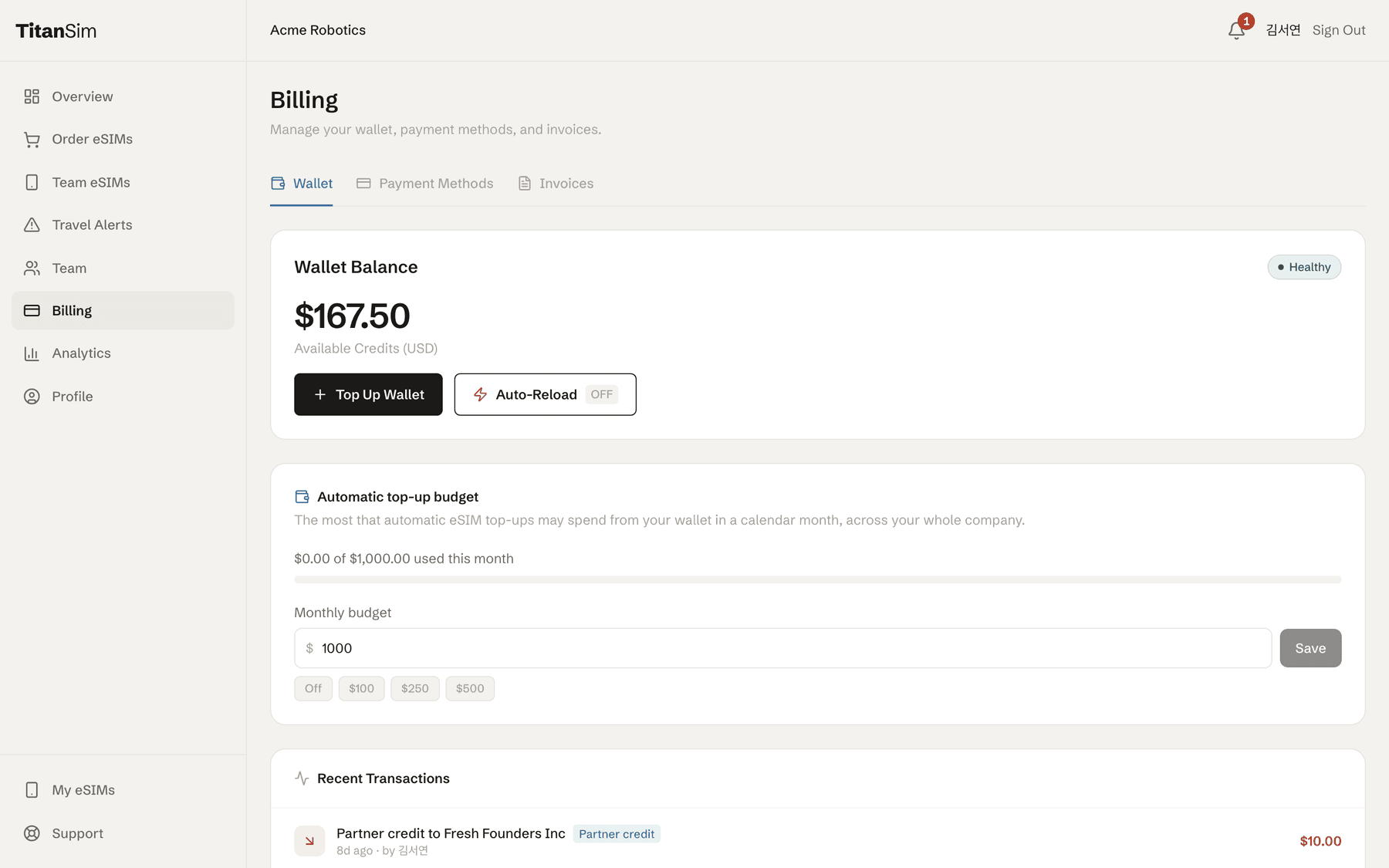
Billing Wallet tab with the company wallet balance, Top Up Wallet and Auto-Reload controls, the automatic eSIM top-up budget, and recent transactions.
Billing, Wallet tab: add prepaid credit, review the balance, configure reload controls, and read the transaction ledger.
02

Bring the team in

Choose the route that matches how your company manages access. Both routes start under Team.

Open Team

Shareable join link

Best when you want one reusable link and do not want to build an address list, such as an open internal rollout or a large distributed team.

  1. 1Turn on Enable join link. The page reveals a company-specific URL.
  2. 2Use Copy and share that one URL through a trusted internal channel.
  3. 3Leave Auto-approve off if an admin should review requests. Turn it on only when anyone with the link may join immediately.

Auto-approve removes the approval step

With Auto-approve on, a colleague who opens the link and signs in becomes a member immediately. Treat the URL like an access link and share it only where your intended colleagues can see it.

Bulk invitation

Best when you already have an approved roster and want to verify every address before an invitation is sent.

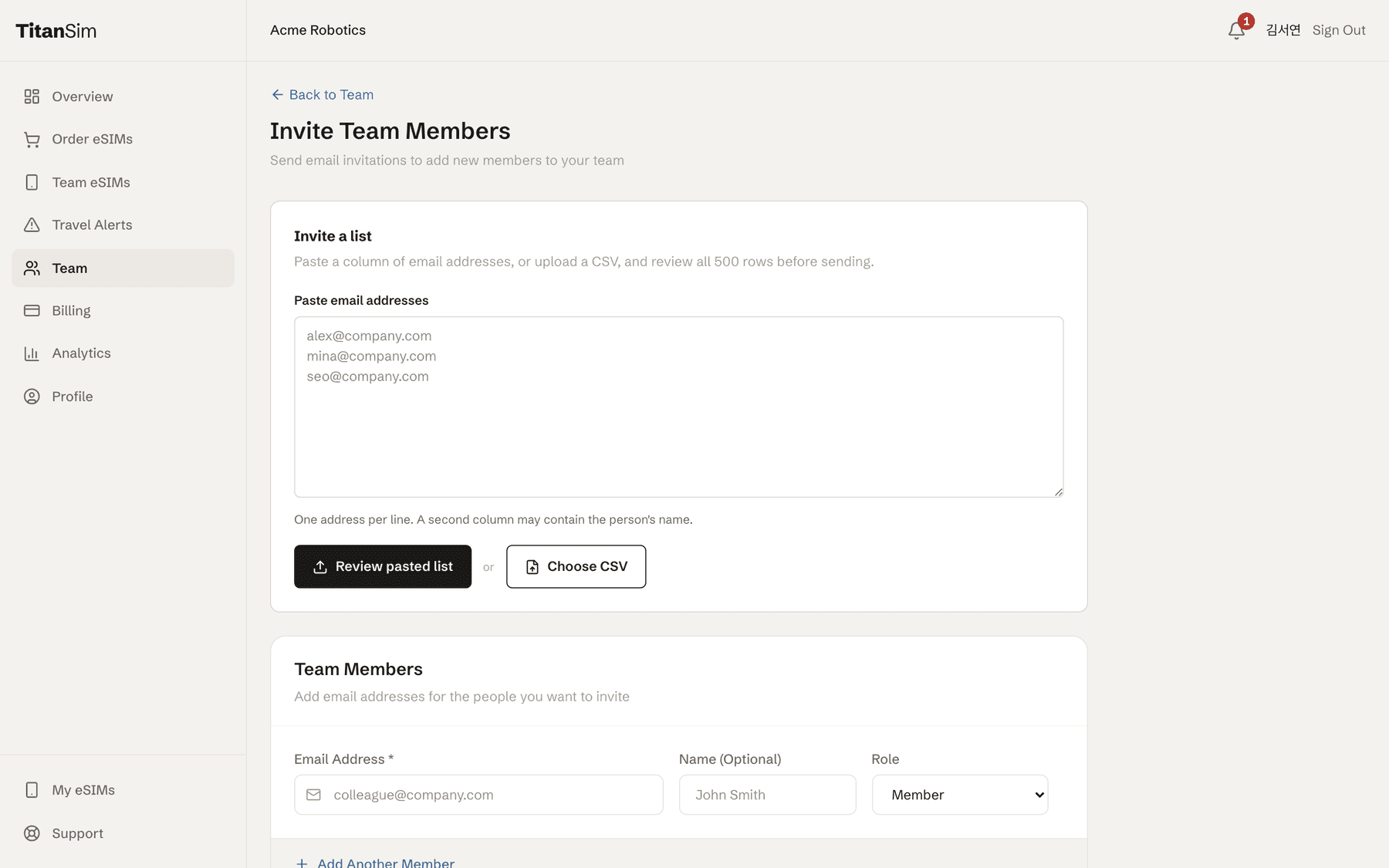
  1. 1Open Invite Members, then paste a column of email addresses or choose a CSV file.
  2. 2Review the per-row preview. Invalid addresses and repeated rows are identified before anything sends.
  3. 3Send only the rows marked ready, then review the result for each address.

For one or two people, the individual invitation form remains below the bulk panel.

Open Invite Members
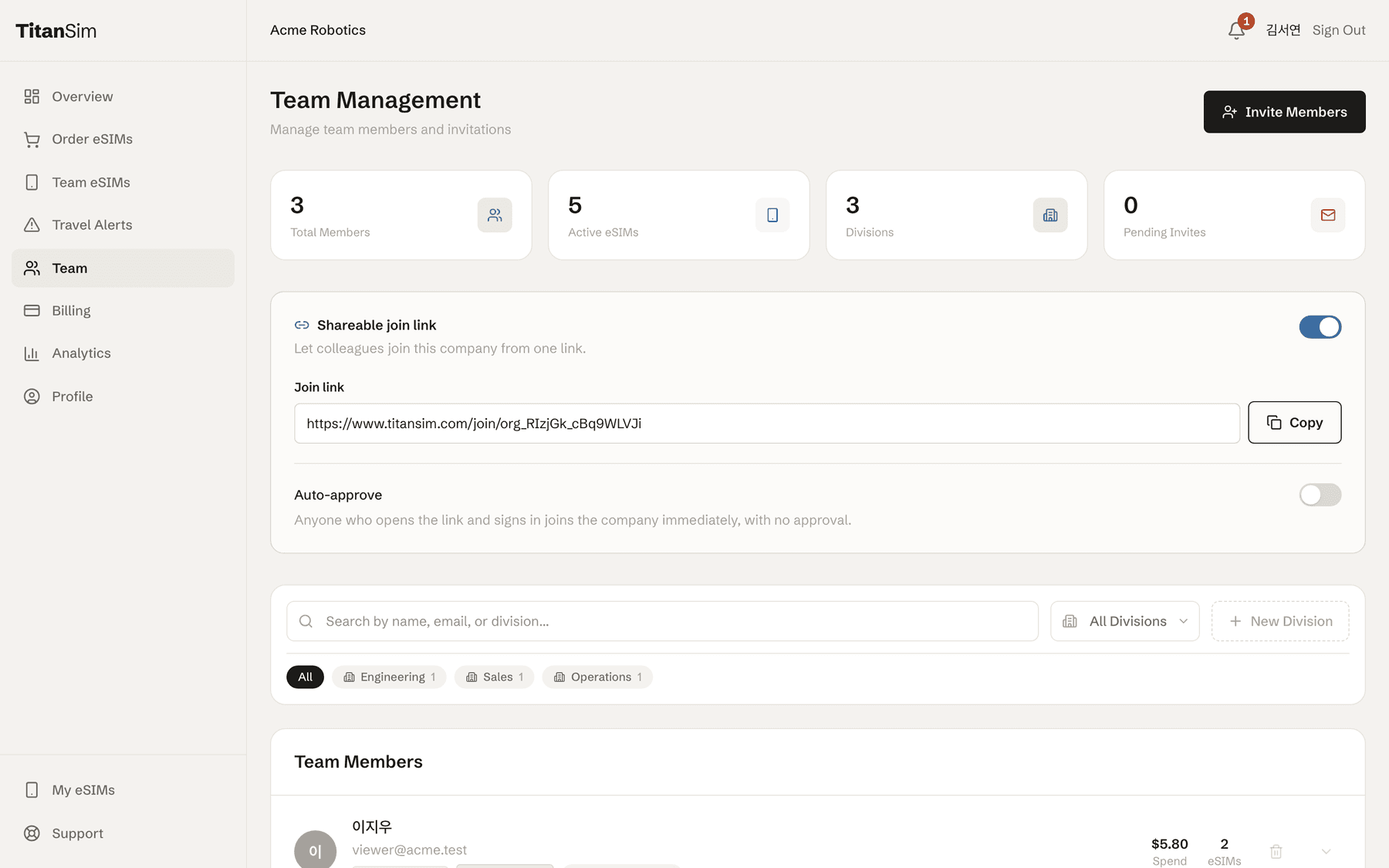
Team Management screen with member and eSIM summary cards, an enabled shareable join link, a copy button, an Auto-approve switch, filters, and the team member list.
Team Management: the shareable join link, Auto-approve control, directory filters, and member list are kept together.
Invite Team Members screen with a large field for pasted email addresses, a Review pasted list button, a Choose CSV button, and the individual invitation form below.
Invite Team Members: paste a column or choose a CSV, then review each row before invitations are sent.
03

Set what each person may spend and where

On Team, expand a person's row and open Purchasing policy before that person places an order.

Monthly ceiling

Choose no limit or set the maximum that person may spend in a calendar month. The panel shows this month's spend against the ceiling.

Destination policy

Allow every destination, allow only selected destinations, or deny selected destinations. Use the country picker to build the list.

Both rules are checked before money moves

TitanSim checks the monthly ceiling and destination policy before it charges the company wallet. A blocked order stays blocked and the wallet is not debited.

New members begin unrestricted. Set both controls before their first purchase when your company requires limits.

04

Order eSIMs and hand them to people

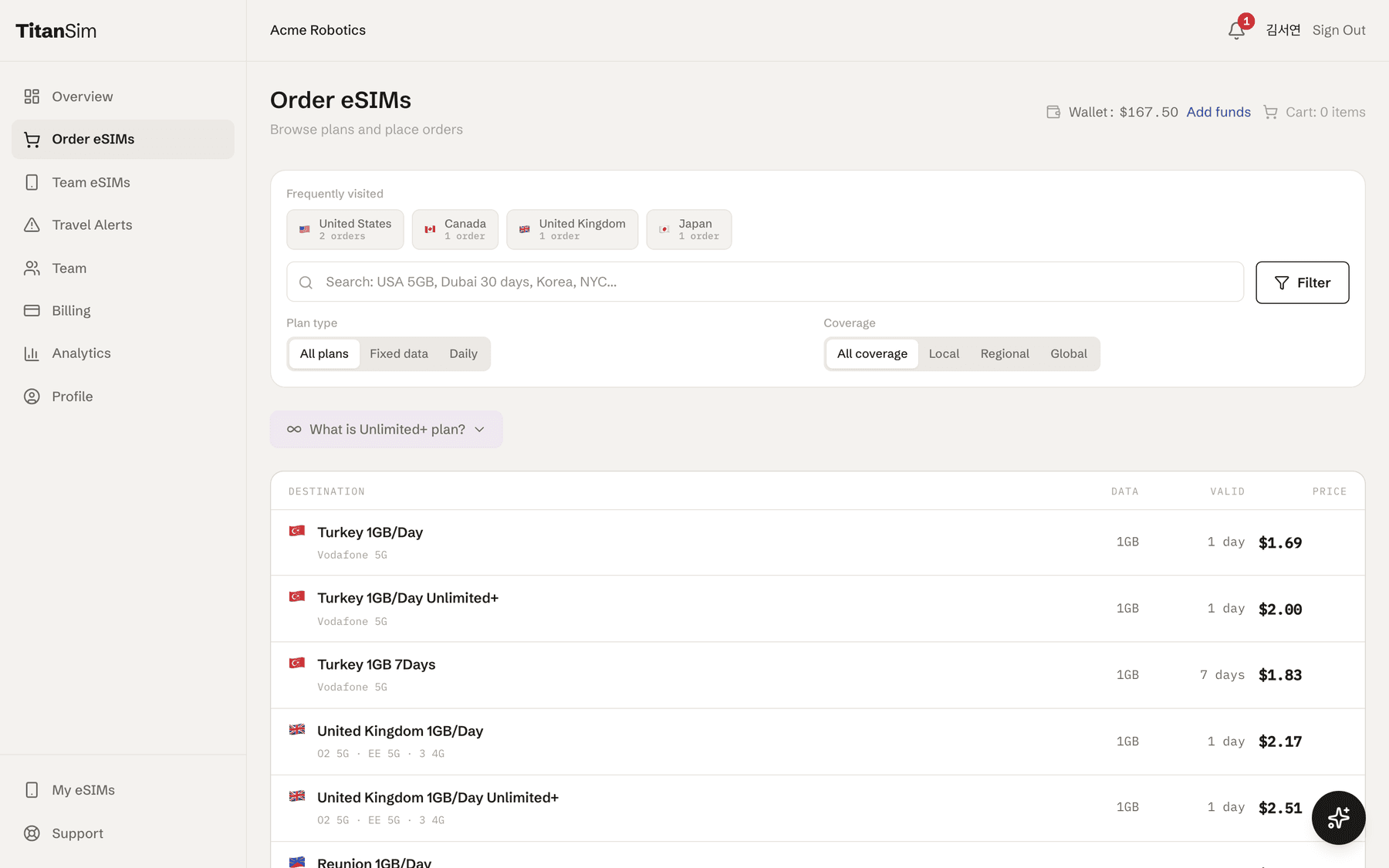
Open Order eSIMs, search for a destination, choose fixed data or daily service, filter coverage, select a plan, and review the quantity or days and total before placing the order.

Open Order eSIMs

The order is charged from the company wallet. The purchaser's monthly ceiling and destination policy are checked first.

Use the handoff path that keeps ownership clear

Invite first, then let the traveler order

This is the cleanest route. The eSIM is attached to that member and Team eSIMs shows the traveler who is carrying it.

Know the admin-order limitation

An order placed on the admin screen is attached to the admin who placed it. Team eSIMs has no reassignment control, so avoid a central bulk order when the roster must name each traveler.

The traveler installs from My eSIMs

The member opens the eSIM and uses Quick Install on iPhone or Android. QR and manual activation details are available as fallback methods.

Open My eSIMs
Order eSIMs screen with wallet balance, frequently visited destinations, search, plan-type and coverage filters, and a price list of available plans.
Order eSIMs: search and filter the live plan list, then select a row to review and place an order.
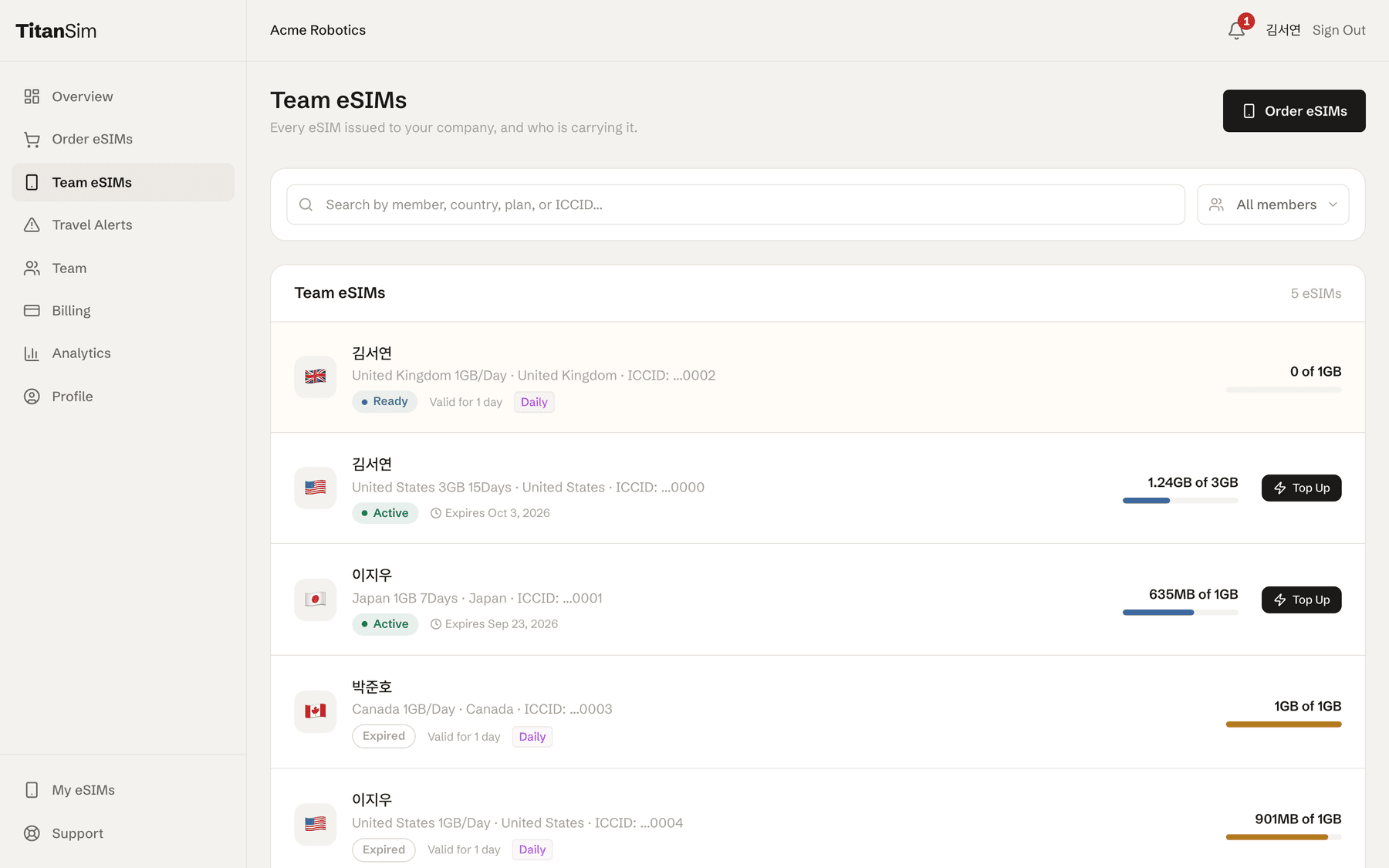
Team eSIMs screen listing people and their plans, countries, partial ICCIDs, statuses, expiry details, data-use bars, and individual Top Up actions.
Team eSIMs: see who is carrying each eSIM and follow status, expiry, and data use after purchase.
05

Read usage and spend afterwards

Use three views for three different questions: who has an eSIM, what the company spent, and what may affect a trip.

Open Analytics

Team eSIMs

See the assigned person, plan, status, expiry, and data used. Search by person, country, plan, or ICCID, and top up eligible fixed-data eSIMs one at a time.

Analytics

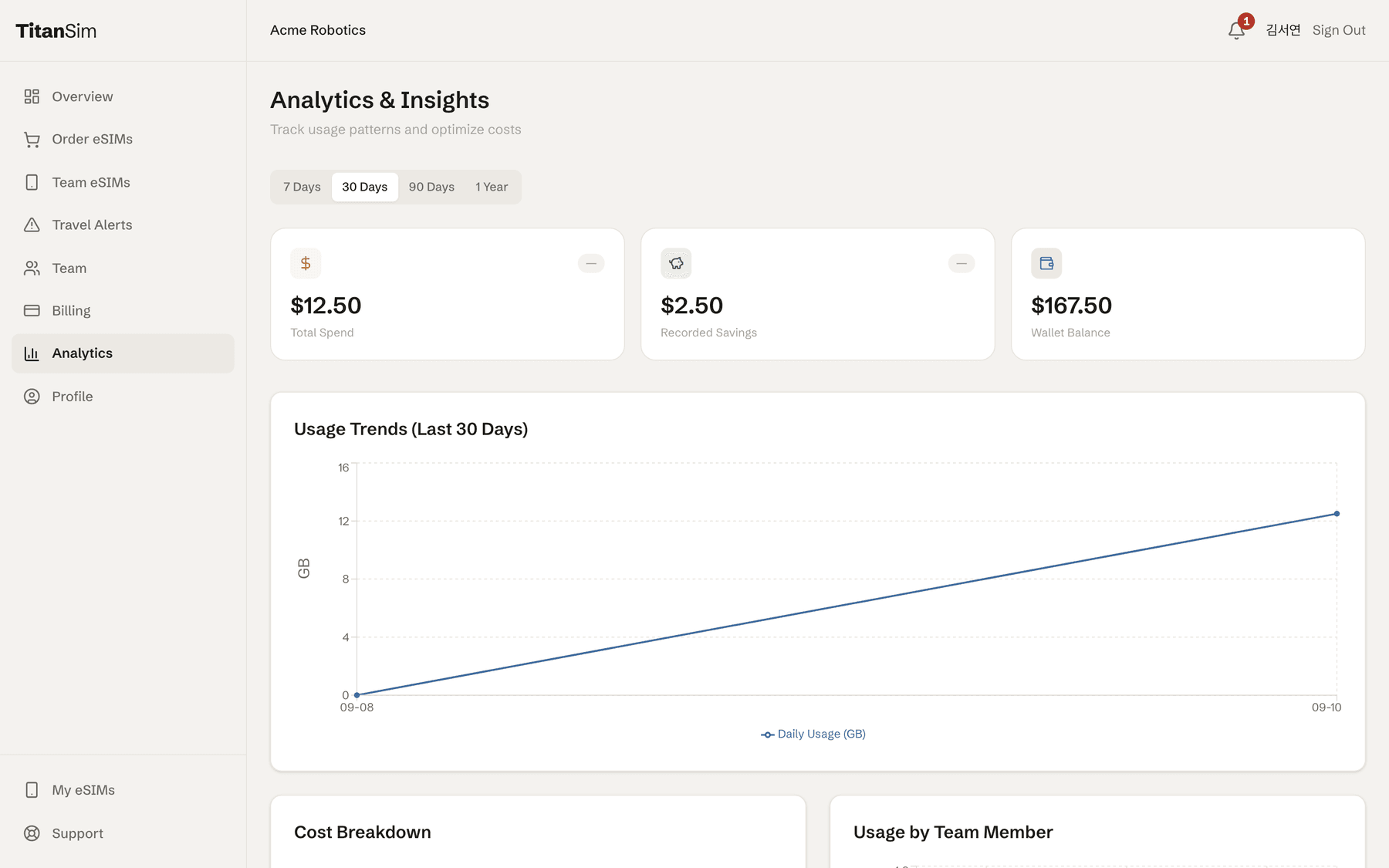
Switch between 7 days, 30 days, 90 days, and 1 year. Review total spend, recorded savings, wallet balance, usage trends, cost breakdown, and usage by team member.

Travel Alerts

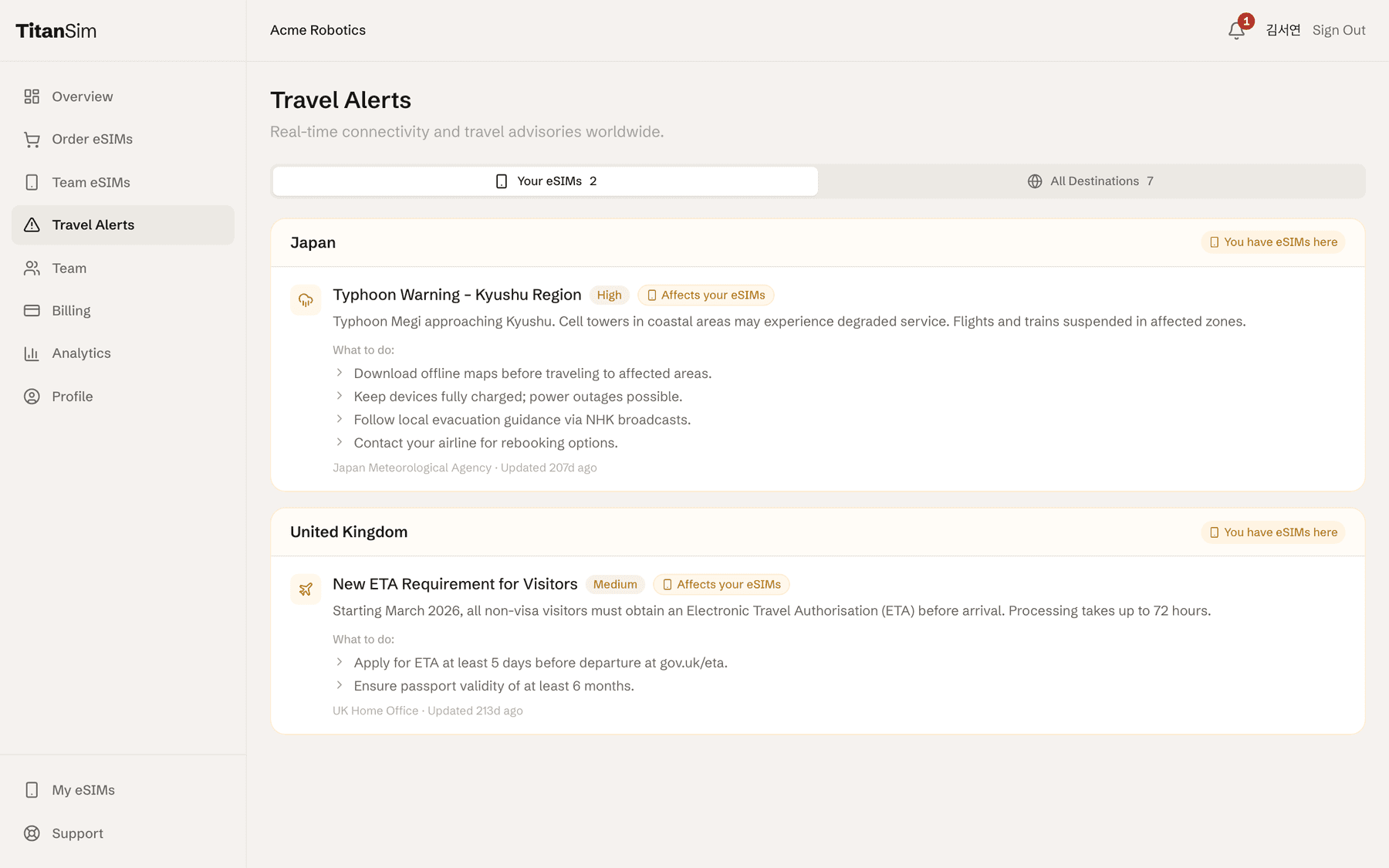
Start with Your eSIMs for advisories tied to destinations where the company has eSIMs. Use All Destinations when planning ahead, and read the severity and recommended actions.

How the savings calculator compares costs

The public calculator compares TitanSim data pricing with a carrier day pass charged per traveler-day. It does not compare against a carrier per-GB rate; TitanSim is the side billed by data.

Analytics and Insights screen with a time-range selector, spend, savings and wallet summary cards, a usage trend chart, cost breakdown, and usage by team member.
Analytics and Insights: change the reporting window and review usage, spend, recorded savings, and team patterns.
Travel Alerts screen with Your eSIMs and All Destinations tabs, country groups, advisory severity, affected-eSIM labels, descriptions, and recommended actions.
Travel Alerts: prioritize advisories for destinations where the company currently has eSIMs.
06

Your first week

Use this list in order. A small live pilot will teach you more than a large first rollout.

  1. Accept the signup invitation, sign in, and confirm the company name shown at the top of the dashboard.
  2. Open Billing and fund the wallet for the first planned trip.
  3. Invite a small pilot group with the join link or bulk invitation route that fits your roster.
  4. Set a monthly ceiling and destination policy for every pilot member who needs restrictions.
  5. Have one traveler order and install one eSIM from their own member account before a wider rollout.
  6. Check Team eSIMs and Travel Alerts before departure and during the trip.
  7. At the end of the week, compare the Billing ledger with Analytics and adjust funding or policies.

You are ready to expand

Once the pilot member can order, install, connect, and appear correctly in Team eSIMs, repeat the same process for the rest of the team.

Cookies & privacy

We use analytics and marketing cookies (Google Analytics, LinkedIn Insight Tag) to understand usage and measure our ad campaigns. Privacy Policy