What you have
One travel data line
Your company has given you a prepaid data eSIM for your trip.
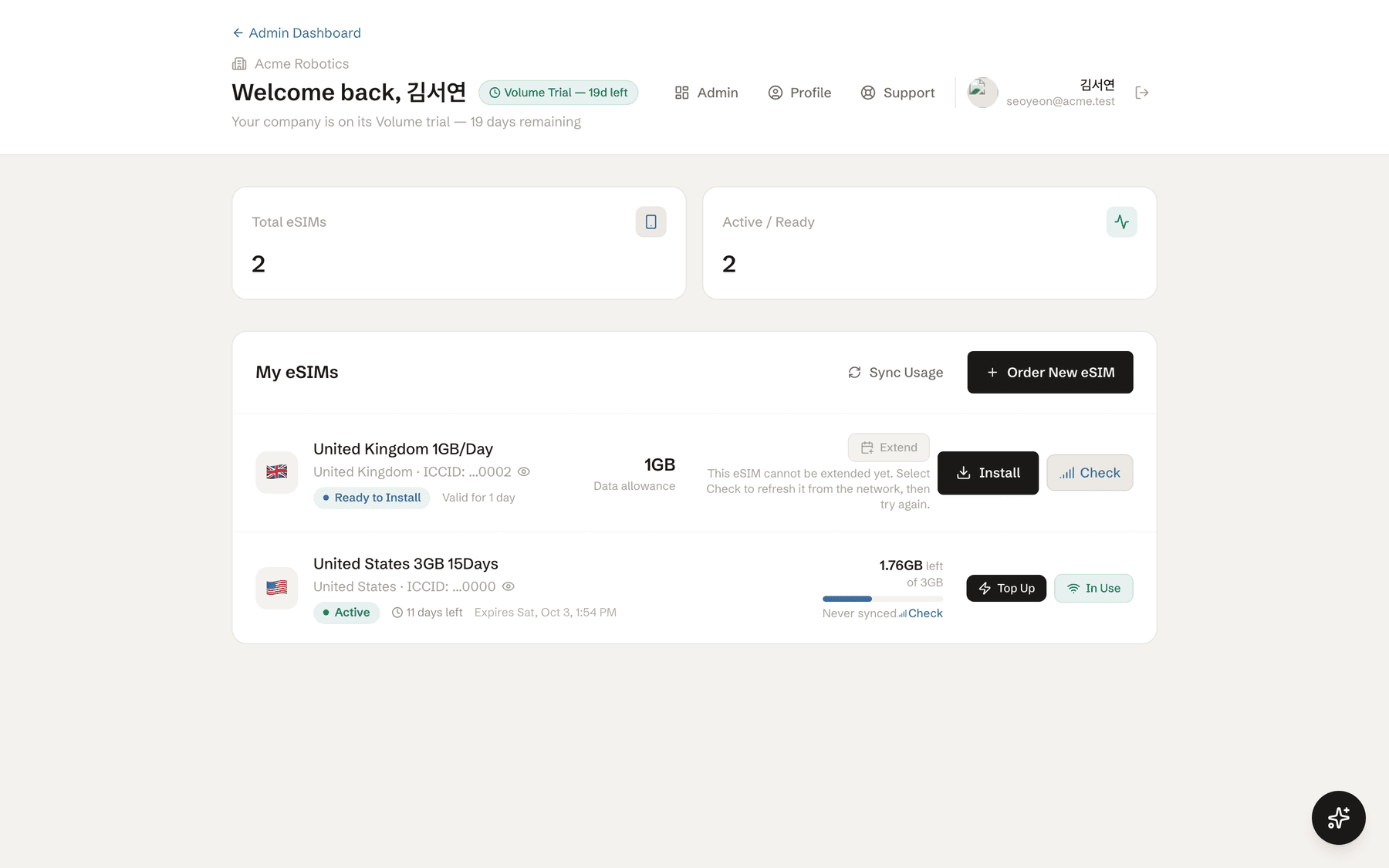
It appears under My eSIMs in TitanSim at /member, and it does not replace your usual SIM for calls and texts.
Before you fly
Check that your phone supports eSIM, then install while you still have reliable Wi-Fi. Waiting until arrival is the most common avoidable failure.
On iPhone
Open Settings > Cellular (or Mobile Data). Confirm that Add eSIM appears. If it does not, ask your IT team or device maker before travelling.
On Android
Open Settings > Network & internet or Connections > SIMs or SIM manager. Confirm that Add eSIM appears; names vary by phone maker.
Install now; connect later
Installation downloads the eSIM profile and needs internet access. Do it at home or the office, keep your normal SIM in place, and leave the travel eSIM off until you land.
Install it from My eSIMs
Use the browser on the phone that will travel. There is no TitanSim app to download.
- 1Sign in at /member and find the eSIM marked Ready to Install.
- 2Select Install, choose iPhone / iPad or Android, and accept the phone's Add eSIM prompts.
- 3When setup finishes, give the line a clear label such as Travel Data so it is easy to choose after landing.
If direct install does not open
Select Show QR Code instead. Display that QR on a laptop or another phone and scan it with the travelling phone; a phone cannot scan a QR shown on its own screen. If needed, copy the activation code and choose Enter Details Manually in the phone's Add eSIM screen.
Land and turn it on
Your eSIM is installed, but your phone still needs to be told to use it for travel data.
Choose the data line
Turn on the new eSIM and select it for Cellular Data or Mobile Data. Keep your primary SIM for calls and texts if you need it.
Enable roaming
Open the new eSIM's settings and turn Data Roaming on. Travel eSIMs use partner networks, so this switch is required.
Allow a few minutes
The network name and 4G/5G signal may take a few minutes to appear. If they do not, turn airplane mode on for ten seconds, turn it off, then restart once.
Active means the provider now reports the eSIM as in use and its data and validity clock are running. It does not mean your usual SIM has been switched off.
Watch what is left
The eSIM card in /member is your quick view of both limits that matter.
Data remaining
Read the amount marked left and the total directly below it. The progress bar gives the same usage at a glance.
Time remaining
Beside Active, read the days or hours left and the exact expiry time. A plan can still have data but run out of time.
Select Check before making a decision. It refreshes the status, data and expiry from the network, and the last-sync label tells you how fresh the numbers are.
Add data or days
Use the action already offered on your eSIM card. You do not need to reinstall the eSIM or scan its QR again.
Top Up
For a fixed-data plan, select Top Up, choose one of the available packages, review it and confirm.
Extend
For a daily plan, select Extend, choose the number of extra days, review the added days and data, and confirm.
If Top Up or Extend is disabled, select Check once. If the action is still unavailable or the portal declines it, contact your company admin.
When something is wrong
Match what you see to the next action below.
It says Ready to Install, but there is no data
Ready to Install means the eSIM has been issued; it is not yet carrying data.
Select Install. If it is already on the phone, choose it for mobile data, turn on Data Roaming, then select Check in /member.
The data ran out
The card may show 0 left or Used up while time remains. The eSIM stays installed and can come back online without a new QR code.
Select Top Up on a fixed plan or Extend on a daily plan, complete the choice, then select Check.
The trip got longer
Keep the eSIM already in the phone whenever the card offers Top Up or Extend.
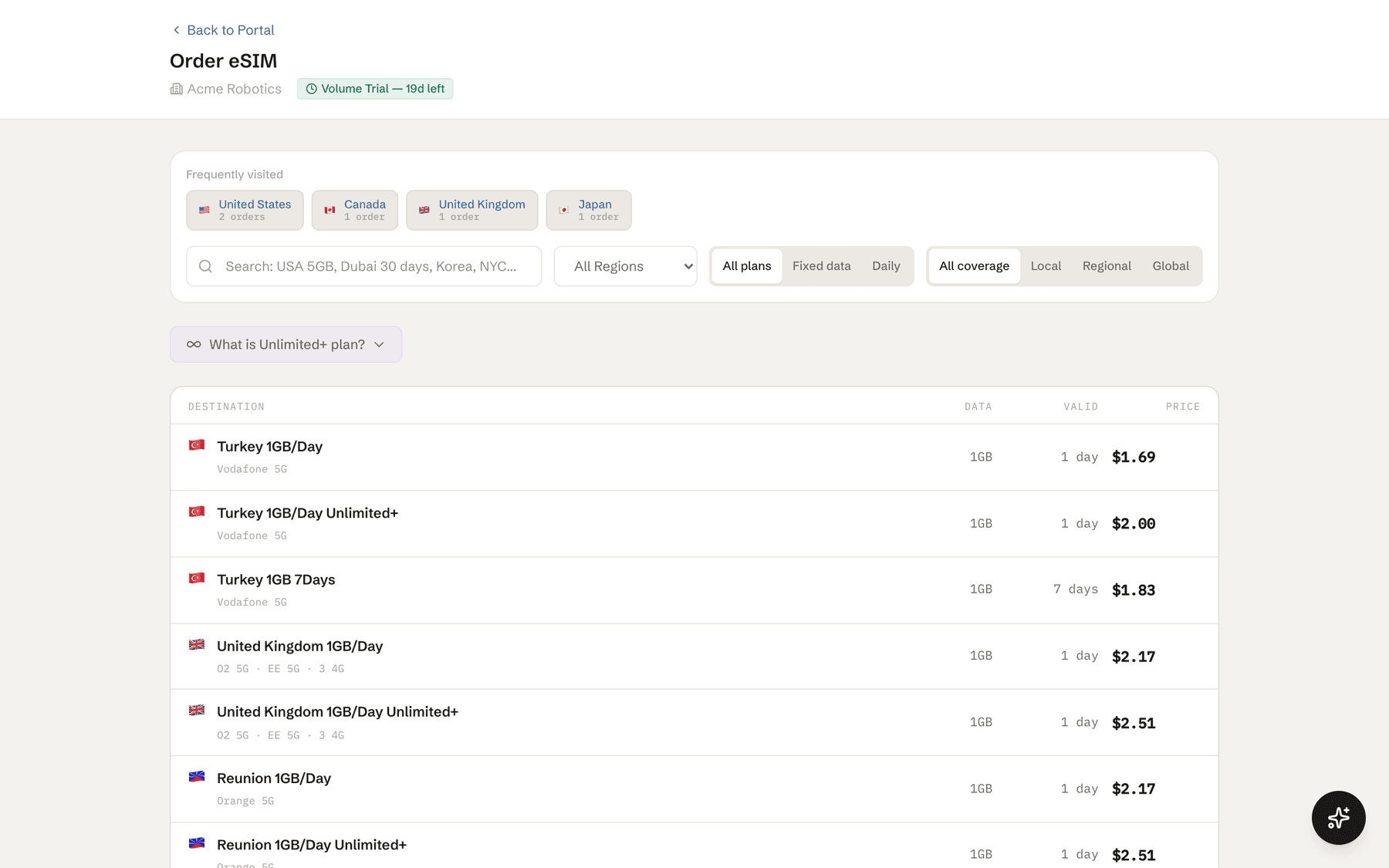
Add the needed data or days. If neither action is offered, select Order New eSIM, choose the destination, or ask your company admin if the order is declined.
Still not connected?
After checking the data line, Data Roaming, airplane mode and one restart, contact support. Include your destination and the last four ICCID digits shown in /member; never send the full activation code in a public message.